Did the update leave you asking “fix AirPrint not working on iPhone” and wondering how to get printing back fast? Start by checking that your mobile device and printer share the same network name. Many connection errors come from a mismatch between the printer wireless settings and the wireless router.
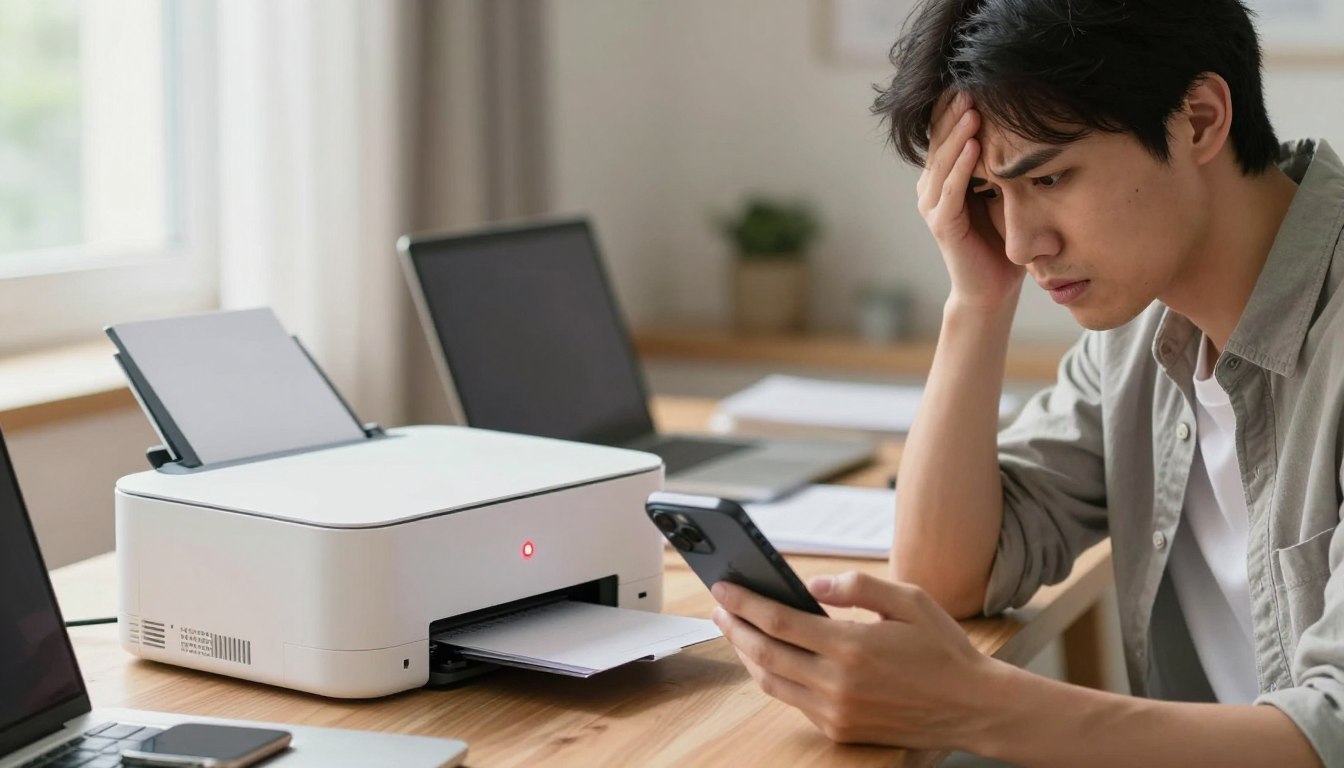
Next, look for the “no AirPrint printers found” message when you try to print from your iPhone. This often appears after a software update interrupts communication.
Visit the manufacturer website to confirm your model supports the feature and to get the latest configuration steps. For brand-specific help, HP support also offers a dashboard to manage devices and warranty details.
Follow simple troubleshooting steps: verify network name, confirm the device connected to the correct -fi network, and enable AirPrint in the printer settings. These checks usually restore the print function within seconds.
Initial Troubleshooting for AirPrint Issues
A few quick checks of wireless and device modes often restore printer visibility.
Checking Airplane Mode and Wi-Fi
Make sure Airplane mode is turned off and Wi-Fi is active on your mobile device. AirPrint requires a local wireless network, so it will not work over cellular.
Verify that your device is connected to the correct network and that the router is operating normally. A simple reconnect can refresh the system and help your iPhone detect printers found on the network.
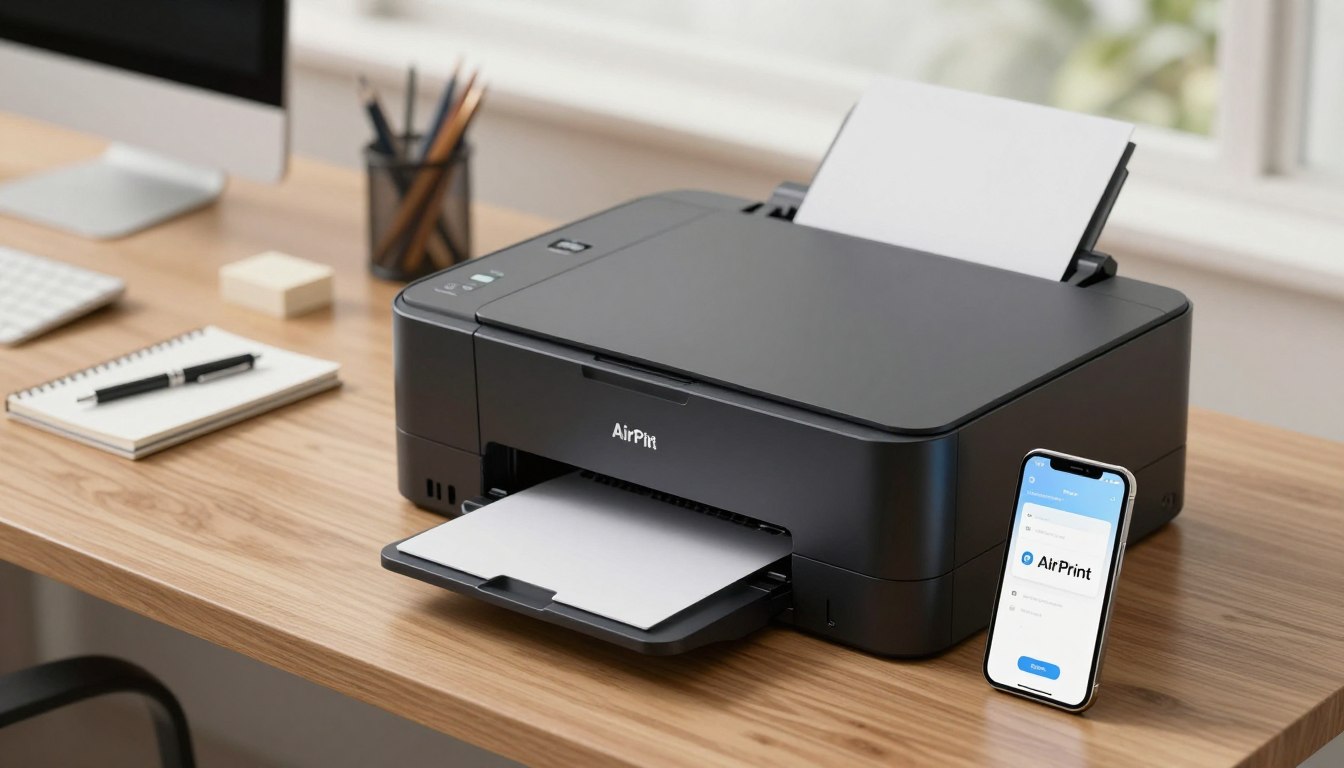
Toggling Bluetooth Settings
If the printer does not appear, toggle Bluetooth off and on. Turning Bluetooth off and back on can force a new discovery and reestablish the connection between devices and the printer.
Also check the device settings and any recent software changes. Small setup adjustments or a quick settings review often resolves this common issue during basic troubleshooting.
How to Fix AirPrint Not Working on iPhone After iOS Update
An iOS software update can interrupt communication between your mobile device and a printer. Start by restarting both your phone and the printer to clear temporary glitches.
Next, update the printing app you use. Outdated apps often cause an error when trying to print documents, so install any available updates and reopen the app.
Check your device settings for restrictive configurations that block the AirPrint feature. Confirm that both devices are connected to the same router and that the printer remains active on the same network.
If the printer still does not appear, verify basic network status and the device connection mode. Rebooting the router can help when the device lost its connection to the network.
Follow these steps in order and test printing after each change. Systematic checks of the setup and devices often restore the printing function and list printers found in the print menu.
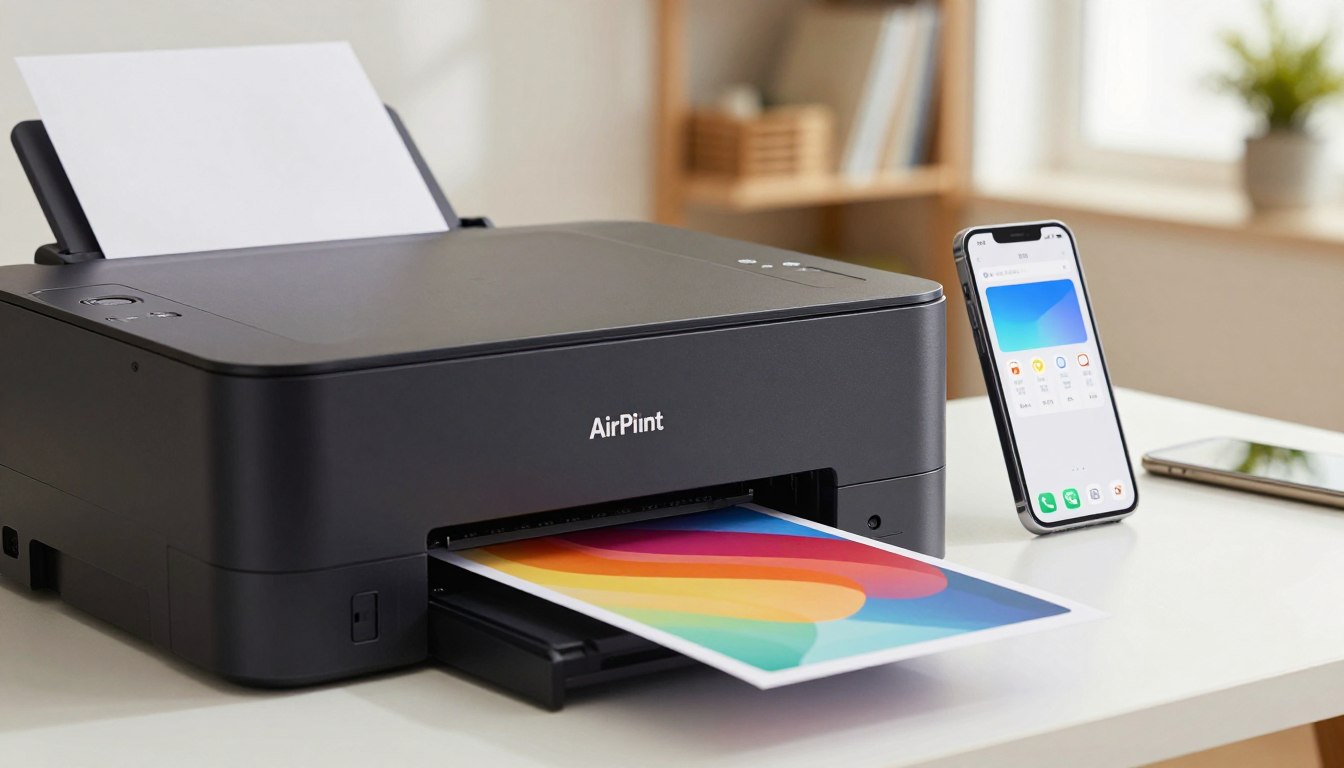
Verifying Printer Compatibility and Status
Begin with a quick compatibility check to ensure your printer can receive jobs from mobile devices. Confirm your model appears on the manufacturer’s website as supported for mobile printing. Examples include common models such as the Brother DCP-8110DN, DCP-8150DN, and DCP-8155DN, or consumer models like the HL-3140CW and MFC-J1010DW.
Next, check the printer status lights and front-panel messages. Look for any flashing lights, low ink warnings, or paper jam alerts. These indicators often stop the device from appearing among AirPrint printers found on a network.
Identifying Printer Errors and Alerts
If the printer reports an error, consult the official support documentation on the manufacturer website for precise guidance. The support pages will show how to clear a status error and restore network connectivity.
Also verify the printer is awake and connected to the same network as your mobile device. A printer in sleep mode or showing a network error will not be listed among printers found by your phone or tablet.
Managing Wireless Network Connections
A secure, private wireless network is required for reliable mobile printing from your phone or tablet. Start by confirming both your printer and mobile device use the same network name.
Confirming Shared Network Access
Open your device settings and check the connected network name. Then check the printer wireless settings or control panel to verify it matches.
If the names differ, update the printer network name to match your connected network. This simple setup change often restores visibility of AirPrint printers and other printers during the print process.
Avoiding Public Wi-Fi Networks
Use a private home or office wireless network for printing. Public Wi‑Fi blocks the security protocols needed for printing from a mobile device and prevents the printer from appearing.
Checking Router Proximity
Move your wireless router closer to the printer if the signal is weak. Distance and obstacles cause dropped connection and poor wireless performance.
Also confirm the printer wireless frequency matches the primary wireless router to prevent communication gaps and keep your printer connected network-wide.
Advanced Power Cycling and Device Configuration
Power cycling both your router and printer can clear hidden network glitches and restore communication. Unplug the router and the printer, wait at least 30 seconds, then plug the router back in first. Wait until the network lights stabilize before powering the printer.
If you still cannot see AirPrint printers found, confirm your mobile device is connected to the primary wireless network and not a guest or secondary wi-fi network. A device connected to a different network will prevent printers found by your phone or tablet from appearing.
Check the printer power mode and front-panel settings so the unit is awake and ready to accept jobs. Advanced configuration of devices may be necessary if your iPhone continues to struggle with the connection to your printer network.
Power cycling lets the router and printer re-establish security handshakes and communication protocols. If problems persist, review network settings or contact the printer manufacturer for guided configuration steps.
Resolving Conflicts with Competing Hardware
Other hardware on your home network can interrupt printer traffic and cause a frustrating setup issue. Start by powering off any Ethernet‑connected devices for a few seconds to see if the problem clears.
Next, check the printer control panel and router settings for clues. Look for IP collisions or reserved addresses that could block the device. Temporarily unplug extra network gear and test the connection from your mobile device.
If the printer still refuses to respond, review the printer settings for firmware or software updates. Reconfiguring the router or running a guided setup from the manufacturer can resolve complex conflicts. Contact manufacturer support if you need detailed information or a step-by‑step walkthrough.
These steps help isolate the issue so your printer is ready to receive the next print message from your app in seconds.
Conclusion
Use a few targeted steps to bring your mobile device and printer back into sync. Start by confirming both are on the same network and clear any status alerts at the printer. Power cycle the router and the printer, then check your app settings and connection status.
If problems continue, visit the manufacturer website for support and troubleshooting information tailored to your model. The site often includes step-by-step guides and firmware updates.
Regular checks of app permissions and network choice help keep printing reliable. Follow these concise steps and you should restore printing quickly and confidently.