Many people struggle with an iPhone battery draining too fast. Your device is meant to be powerful. But, hidden processes or wrong settings can cause it to lose power quickly.
To fix iPhone battery drain, check your device settings and how you use it. Most problems can be solved with simple changes. These will help your device work better again.
If you have the latest iPhone, like the iPhone 15, you can fix its battery issues with specific steps. By adjusting your settings, your phone will last longer throughout the day.
Key Takeaways
- Identify high-consumption apps through your system settings menu.
- Utilize Low Power Mode to extend your daily usage time.
- Disable unnecessary background refresh and location services.
- Keep your operating system updated to resolve known software bugs.
- Monitor your overall health percentage to determine if hardware service is required.
Diagnosing the Cause of Your iPhone Battery Draining Too Fast
Finding out why your iPhone battery life problems is a step-by-step process. Before you try to fix it, you need to see how your phone uses energy. Apple’s built-in tools can help you find out what’s causing your iPhone battery draining too fast.
Checking Battery Health in Settings
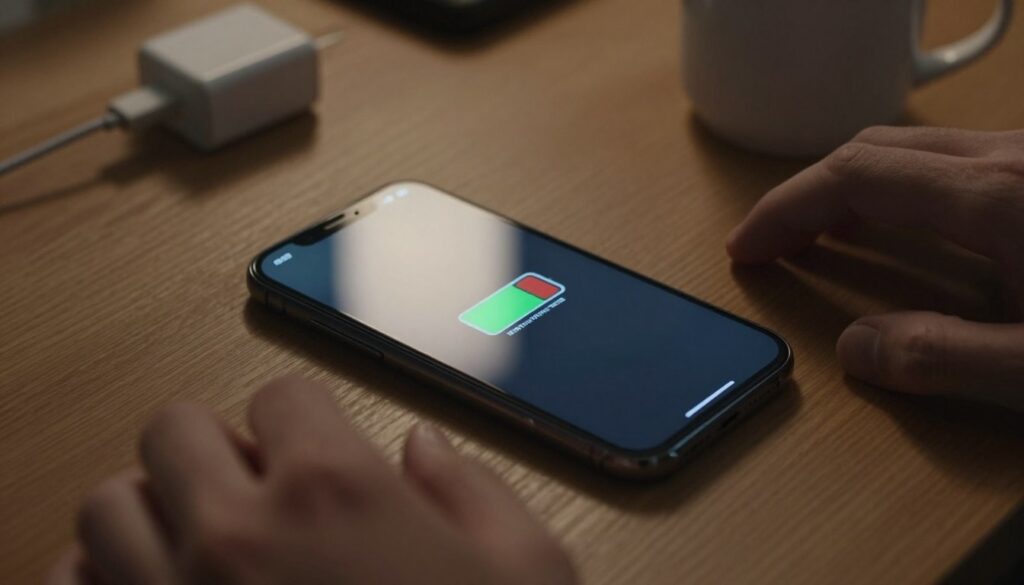
Start by going to Settings and then Battery. Look for the Battery Health & Charging section. It shows your battery’s current capacity as a percentage.
If your capacity is less than 80%, your battery might be worn out. A worn-out battery can’t hold a charge well, leading to shutdowns or quick power loss. Checking this helps you know if it’s a software or hardware problem.
| Battery Health Status | Performance Impact | Recommended Action |
|---|---|---|
| Above 90% | Optimal performance | No action needed |
| 80% – 89% | Minor capacity loss | Optimize settings |
| Below 80% | Significant degradation | Consider replacement |
Identifying Power-Hungry Applications
In the Battery menu, you can see which apps use the most energy. This helps you find power-hungry software. You might find a social media app or a background utility is the culprit.
Look at apps that use a lot of power even when you’re not using them. If an app is using too much power, try limiting its background use or delete it. This simple step can often fix common problems.
Analyzing Recent Software Updates
At times, a battery draining issue iPhone users face is due to a recent iOS update. After an update, your iPhone might do background tasks that use a lot of power. This can make your device feel warm or lose power faster.
Usually, this problem goes away in 24 to 48 hours as the tasks finish. If the problem lasts longer, it might be a software bug. Be patient for a few days after a big update.
Adjusting System Settings to Extend Battery Life
If your phone dies by noon, these tips can help. Many people don’t realize how settings affect battery life. By tweaking a few settings, you can optimize iPhone battery life and avoid constant charging.
Optimizing Screen Brightness and Auto-Lock
The screen uses a lot of power. Go to your display settings and turn on Auto-Brightness. This adjusts the screen’s brightness to your surroundings. Also, set the Auto-Lock timer to thirty seconds to save power when not in use.
Disabling Location Services for Non-Essential Apps
GPS can drain your battery fast. Many apps ask for location access even when not needed. Check your privacy settings and limit location access to “While Using” or “Never” for unnecessary apps.
Managing Push Email and Fetch Intervals
Push email notifications keep your device connected to the server. This can waste a lot of power. To save battery, change your email settings to “Fetch” and set the interval to an hour or manual.
Utilizing Low Power Mode Effectively
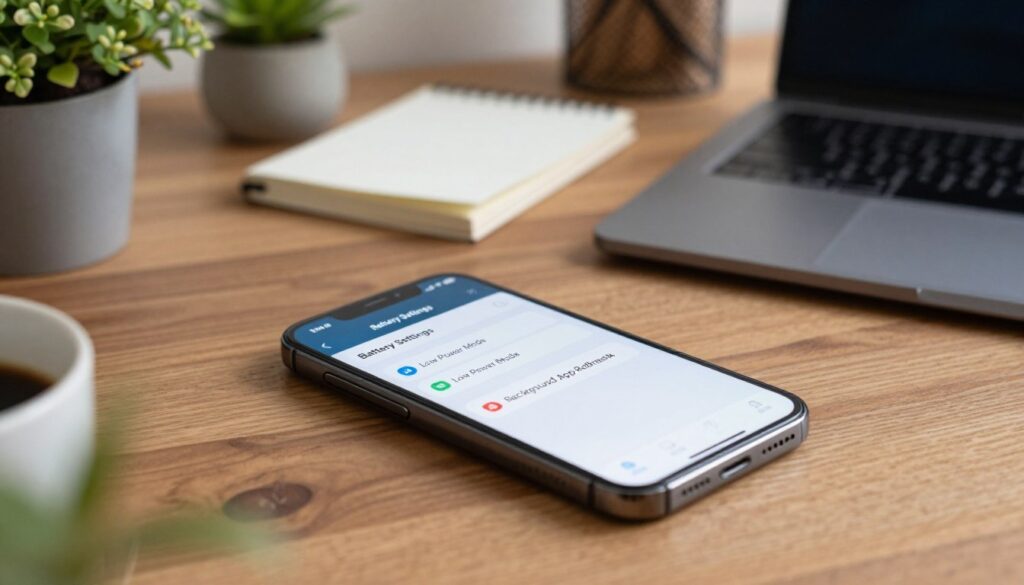
Low Power Mode is a great tool to extend battery life. It reduces background activity and lowers visual effects. It’s a key iPhone battery drain solutions when you’re away from a charger.
Use it during long days too. It’s a simple way to handle a battery draining issue iPhone users face. Just remember to turn it off when you can charge your phone again.
Managing Background Activity and App Behavior
Your iPhone works hard even when you’re not using it. Apps keep fetching data and updating content in the background. This makes your apps ready to use quickly but can drain your battery. Learning to control these processes is a key way to extend your battery life.
Restricting Background App Refresh
Background App Refresh lets apps check for new content often. This can wake up your processor a lot, which fixes iPhone battery drain when turned off. Go to Settings, then General, and tap Background App Refresh. Turning it off or limiting it to important apps will greatly optimize your iPhone battery life.
Disabling Automatic Downloads and Updates
Your device checks for app updates and downloads media automatically. These tasks use data and battery power. To stop this, go to the App Store settings and turn off automatic downloads for apps and updates. This ensures your device only updates when you’re ready and plugged in.
Managing Notifications to Reduce Wake Cycles
Every notification makes your screen light up and processor work. Too many notifications from non-essential apps can drain your battery. Check your notification settings and turn off alerts for apps you don’t need to see right away. This helps your device stay asleep longer, using less battery.
Closing Apps vs. Allowing iOS Management
Many think closing apps saves battery. But iOS manages memory by freezing apps in the background. Closing an app forces it to reload, using more energy than just resuming it. Letting iOS handle background tasks is usually the best way to save battery.
| Strategy | Impact on Battery | Ease of Use |
|---|---|---|
| Background Refresh | High | Easy |
| Auto-Updates | Medium | Moderate |
| Notification Control | High | Easy |
| Force-Closing Apps | Negative | N/A |
Advanced Troubleshooting for Persistent Battery Issues
When simple fixes don’t work, it’s time for more serious steps. iPhone battery life problems often come from deep software issues. These steps can help find and fix the main cause of your battery drain.
Resetting All Settings to Default
Resetting your settings can solve configuration errors that drain your battery. This action resets your system to its original state. It keeps your personal data safe, like photos and messages. It’s a good option when other fixes don’t work.
Performing a Forced Restart on Your iPhone
A forced restart clears temporary bugs that might be using power. It refreshes your system, improving power efficiency. For help, check how to fix iPhone 17 battery issues on official support sites.
Restoring Your Device via iCloud or Computer
For ongoing software problems, a full restore might be needed. Back up your data first, then reset your device. This removes any bad system files and starts your iPhone fresh.
Evaluating Hardware and Battery Replacement Options
Physical battery wear can also cause battery drain. If your battery health is low, consider a professional replacement. Hardware health is key to your device’s long-term performance. Getting expert help keeps your iPhone running well.
| Troubleshooting Method | Primary Benefit | Data Risk |
|---|---|---|
| Reset All Settings | Clears system conflicts | None |
| Forced Restart | Fixes temporary glitches | None |
| Factory Restore | Resolves deep software bugs | High (Requires Backup) |
| Battery Replacement | Restores physical capacity | None |
Conclusion
Managing your battery life is key to keeping your Apple device running smoothly. Regular checks and proactive steps are essential for long-term health.
Try these effective solutions to boost your iPhone’s performance. Keeping your iOS updated is crucial for security and stability. Also, regular maintenance of cables and ports can prevent many power issues.
If you still face problems, check this guide on what to do if your iPhone is not charging.
Effective troubleshooting needs patience and careful attention. If issues continue, contact Apple Support or visit an Apple Authorized Service Provider. Sharing your experiences can help others solve similar problems.
By following these simple tips, your iPhone will stay a powerful tool for your daily life. Your dedication to these practices will make your tech experience smoother every day.
FAQ
Why is my iPhone battery draining too fast after a recent iOS update?
Many users see their battery drain after an update. This is because your device is doing tasks in the background. These tasks include indexing files, photos, and apps. Usually, your battery life will get back to normal in 48 hours.
If it doesn’t, you might need to check for Apple’s updates or review your settings.
How can I identify which apps are causing my iPhone battery life problems?
Go to Settings > Battery to find out which apps use the most power. Look at the “Battery Usage by App” section. It shows which apps have used the most power in the last 24 hours or 10 days.
Knowing which apps use a lot of power is the first step to better battery life.
Will disabling Background App Refresh really help fix iPhone battery drain?
Yes, turning off Background App Refresh is a great tip. This feature lets apps check for updates even when you’re not using them. By disabling it in Settings > General, you can save a lot of battery life.
At what percentage should I consider a professional battery replacement?
Check your Maximum Capacity in Settings > Battery > Battery Health & Charging. If it’s below 80%, your battery might not work well anymore. This could cause your device to shut down unexpectedly. In this case, getting a new battery is the best option.
Does using Low Power Mode frequently damage the battery?
No, Low Power Mode won’t hurt your battery. It’s a feature that helps save battery life by reducing brightness and performance. It’s good to use when you’re away from a charger for a long time.
How does screen brightness affect my iPhone battery drain troubleshooting efforts?
The screen uses a lot of power. To save battery, turn on Auto-Brightness or lower the brightness manually. These tips, along with a shorter Auto-Lock timer, help avoid wasting energy when the screen is on but not needed.
What is the benefit of “Reset All Settings” for iPhone battery drain solutions?
Resetting all settings can fix deep software problems if basic changes don’t work. It resets system settings to their defaults without deleting your data. This can help fix battery life issues by removing conflicting settings.