Are you facing the “unable to check for update on iPhone” message and wondering how fast you can fix it? This short guide gives clear, practical steps so you can get back to updating your device.
Many people hit this software error when the device can’t reach Apple servers. Start in Settings and review your network settings and internet connection. A quick force restart by holding the side button often clears temporary glitches.
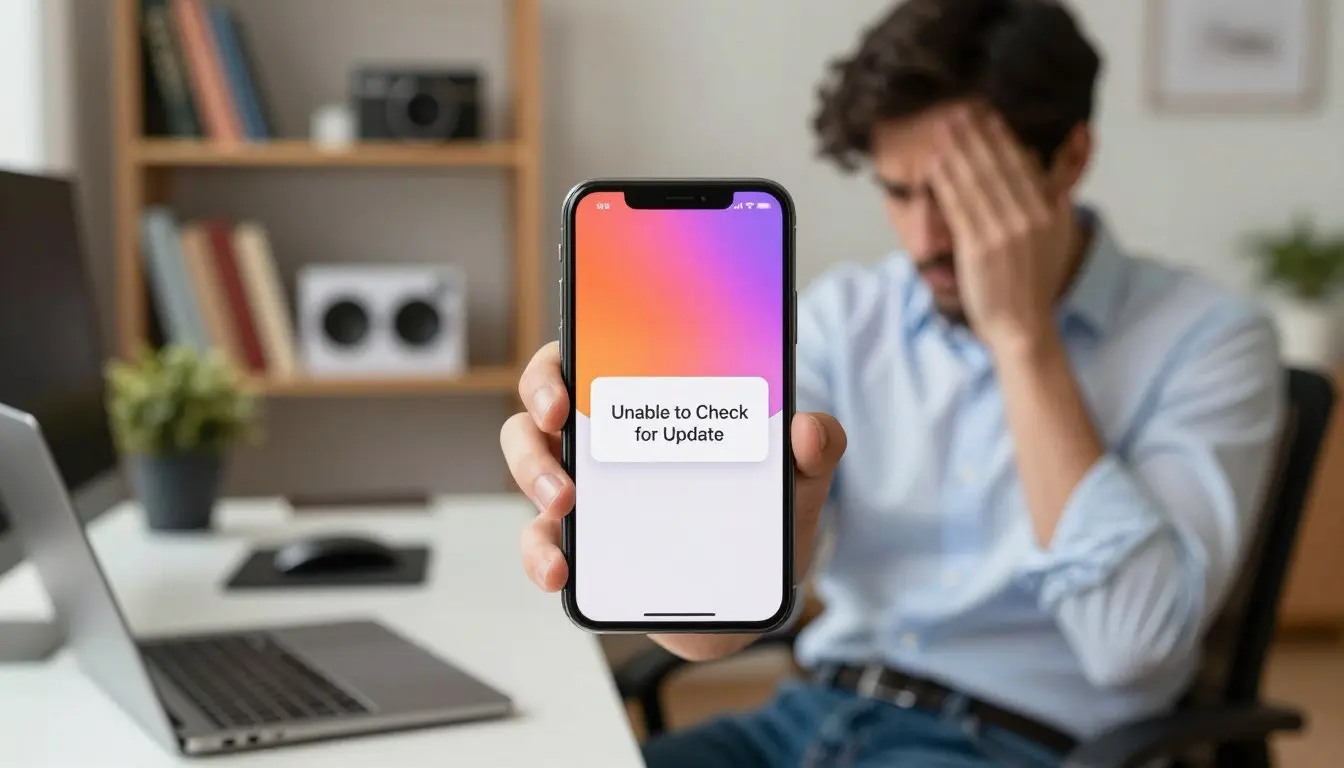
Also check storage and the date and time entries in Settings; mismatches or low space block the update process and cause version install failures. The latest Apple support guidance was updated on December 19, 2025, and mirrors these steps.
Follow the simple steps ahead to verify connection, free space, and software version. With a few minutes and the right checks, you should fix common issues and complete the update on your iPhone or iPad.
Understanding Why You Are Unable to Check for Update on iPhone
If your device shows an error message while trying to fetch a new version, the cause is often simple. Many people see “unable check update” when the phone cannot reach Apple servers during the software update process.
Incorrect settings and a wrong date can block a secure connection. If your date is off, the device may fail to verify the software update and show an error message.
Older version iOS or a retired release can also cause this problem. Sometimes the issue is temporary and lies with Apple’s infrastructure; other users reporting the same problem usually means a server-side outage.
The iPhone 11 Pro is a common model affected when running older builds. For iPhone users, waiting a short while, checking the Apple System Status page, or confirming others have the same issue often points you toward the right solutions.

Initial Checks for Your Internet Connection and Apple Servers
A quick server and network check often solves the problem fast. Start by confirming if Apple’s software update server is online before changing device settings.

Verifying Apple System Status
Visit the Apple Support System Status page to see if Apple servers report an outage. If the server shows an issue, wait for apple support to resolve it and then try to check update again.
Server-side problems are a common cause of this error. Checking status first saves time and prevents unnecessary resets.
Testing Alternative Network Connections
If the servers are fine, test another internet connection. Switch from Wi‑Fi to cellular or join a different network to see whether your device can reach Apple servers.
If switching helps, consider resetting network settings on your phone. Also set date and time to automatic and disable any VPN or proxy that may block the connection.
Managing Device Storage and Battery Requirements
Make sure your device meets simple power and space requirements before starting an install. A low battery or crowded storage often triggers the error and stops the process.
Battery: charge your phone to at least 50% before you download install any new software. If possible, keep it plugged in during the process to prevent interruptions.
Storage: open Settings > General > iPhone Storage to review what is using space. Remove large files, old messages, and unused apps to free up room quickly.
Freeing Up Space for New Software
Enable Offload Unused Apps to remove app binaries while retaining your data. This frees storage without losing personal information.
Try clearing app caches, deleting videos, or transferring photos to cloud storage. If your iPhone lacks enough storage, the system will fail to run updates and show an error.
Managing storage space and keeping the battery charged are simple, reliable steps that often fix update issues and let your device complete the download install smoothly.
Troubleshooting Software Glitches with a Restart
Restarting refreshes system services and often restores the connection your device needs to reach the server. A simple reboot can clear a transient software error that blocks updates and prevents the device from talking with Apple servers.
Try a force restart when the phone freezes while attempting a check update. Press and hold the power button until the screen goes black and the Apple logo appears. This action kills stuck processes and reloads core services.
After the restart, open Settings and run a check update again. If the problem persists, use the reset network option or retry on a different network. Many users find restart is the first of several steps that lead to a full fix.
If background tasks or a rogue app caused the issue, the reboot often resolves it quickly. Use this step early in your troubleshooting workflow before moving on to more involved solutions.
Removing and Redownloading the Update Package
Corrupted update files in storage can halt installs; removing them forces your device to fetch a clean package.
Open Settings > General > iPhone Storage and scroll until you find the software update entry. Tap that item, then use the Delete Update button to remove the partly downloaded data.
After deletion, return to Settings > General > Software Update and run a fresh check. The device will download install the latest software package without the previous corrupted file blocking progress.
This fix addresses cases where a stalled download or interrupted process left bad data in storage. Clearing the file removes any app or system remnants that caused the problem and lets the phone attempt a clean download.
If you still cannot complete the install latest version, try switching networks or restarting the device before retrying the download install.
Using a Computer to Bypass Over the Air Update Errors
If wireless attempts fail, a wired connection to a computer often finishes the job. This method avoids flaky Wi‑Fi and many network settings issues.
Updating via Finder on macOS
On Macs with Catalina or later, open Finder and select your device in the sidebar. Click the Check for Update button and follow the prompts to install the latest version.
macOS Ventura 13.4.1 works the same way and can manage updates for an iPhone 11 Pro.
Using iTunes on Windows or Older Macs
On Windows or older macOS builds, launch iTunes and connect the device with a USB cable. Use the device summary page to check update status and start installation.
Handling Device Recognition Issues
If your computer does not recognize the device, try a different USB port or cable. You can also force restart the phone into recovery mode and then rerun Finder or iTunes.
Using a computer gives a stable internet connection and is a reliable solution when over‑the‑air attempts show an error message or fail repeatedly.
Conclusion
This closing note collects the practical actions that usually restore update functionality fast.
Follow the checklist: confirm network health, free enough storage, set date and time to automatic, and restart the device when needed. Run a single check update after these steps.
If wireless methods fail, connect the device to a computer and install via Finder or iTunes. That approach often completes the process when over‑the‑air attempts stall.
Keep battery levels healthy and monitor space before you start. These small checks prevent most failures and help you enjoy the latest features sooner.
1 thought on “How to Fix Unable to Check for Update on iPhone”