Are you looking to set up Apple CarPlay on your iPhone 15 Pro Max? In this article, we will take you step-by-step through the process of setting up CarPlay on your iPhone 15 Pro Max.
Apple CarPlay is a system that allows you to connect your iPhone to your car’s infotainment system. With CarPlay, you can make calls, send and receive messages, get directions, listen to music, and access other apps on your iPhone without taking your hands off the wheel. CarPlay uses Siri voice control or your car’s touchscreen, knobs, and buttons to control your iPhone.
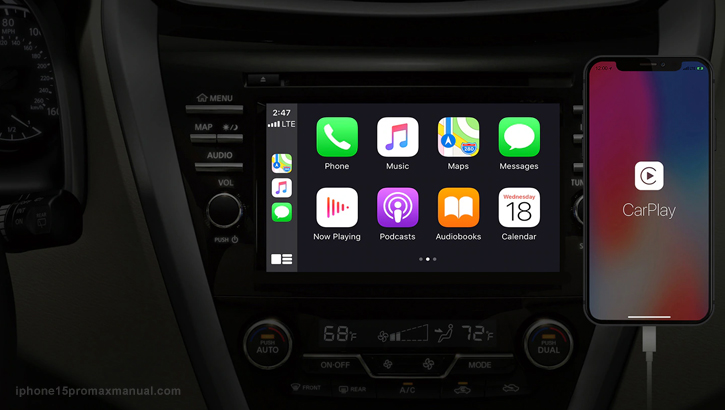
Step-by-Step to Setting Up CarPlay on your iPhone 15 Pro Max
All of the new iPhone 15 models are provided with a USB-C port rather than a Lightning port, meaning that the Lightning cable will no longer be needed for charging, syncing, or CarPlay.
According to your vehicle’s specifications, you’ll need either a USB-A to USB-C cable or a USB-C to USB-C cable (like the one included with the iPhone 15) in order to use CarPlay.
Setting up CarPlay on your iPhone 15 Pro Max is a simple process that can greatly enhance your driving experience. Here’s how:
- Check CarPlay Compatibility: Before setting up CarPlay, ensure that your car’s infotainment system supports CarPlay. You can refer to your car’s manual or the manufacturer’s website for more information.
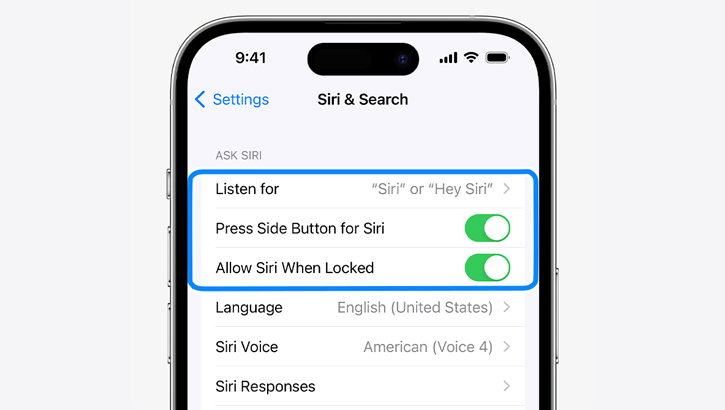
- Enable Siri: CarPlay relies on Siri for voice commands and hands-free operation. To enable Siri on your iPhone, go to Settings > Siri & Search and turn on either “Press Side Button for Siri“.
Connect your iPhone to CarPlay: Depending on your car’s capabilities, you can connect your iPhone to CarPlay using a USB cable or wirelessly.
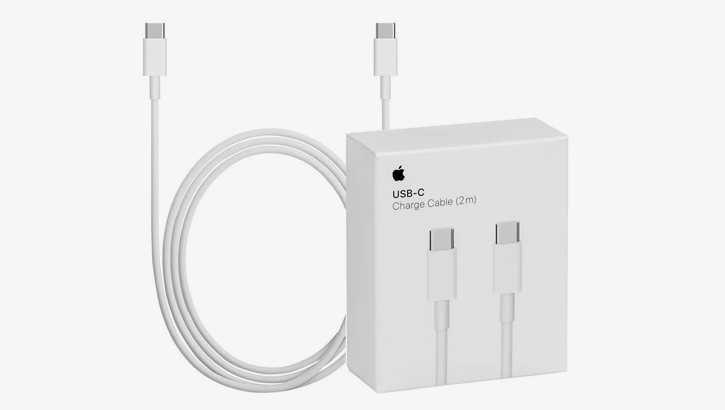
- Wired Connection: If your car supports wired CarPlay, connect your iPhone to your car’s USB port using a USB-A to USB-C cable or a USB-C to USB-C cable. After connecting, you may be prompted to allow CarPlay access on your iPhone. If so, tap “Allow“.
- Wireless Connection: Some vehicles support wireless CarPlay, allowing you to pair your iPhone simply by plugging it into your car’s USB port using a USB cable. If your car supports this feature, after starting CarPlay using USB, you will be asked if you want to pair wireless CarPlay for future use. If you agree, your iPhone will connect wirelessly to CarPlay automatically on your next drive.
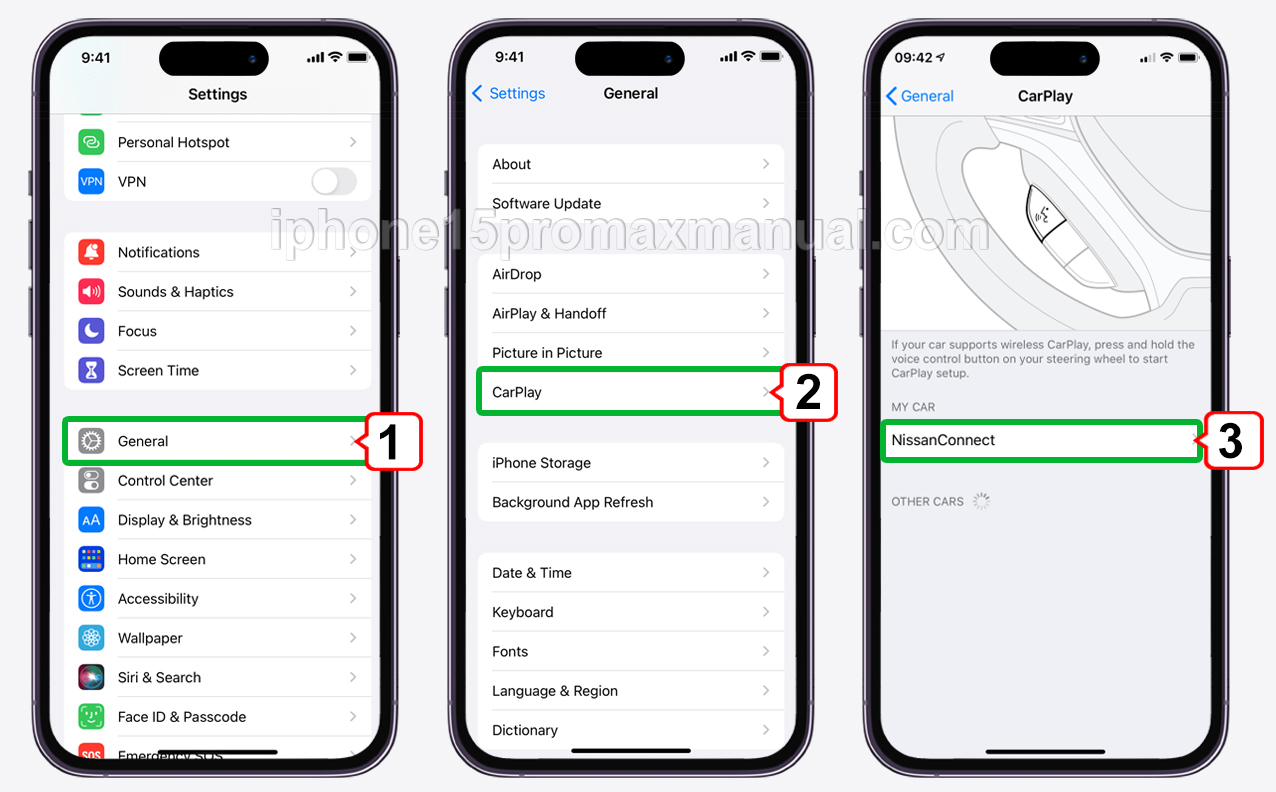
- Select your Car: On your iPhone, go to Settings > General > CarPlay > Available Cars, and choose your vehicle from the list. This step is essential, especially if you have multiple cars with CarPlay compatibility.
Configuring CarPlay Settings and Preferences
Once you’ve set up CarPlay on your iPhone 15 Pro Max, you can configure its settings and preferences to your liking. Here are some of the things you can do:
- Customize the CarPlay home screen by rearranging or removing apps.
- Set up Siri voice control to activate when you say “Hey Siri” or press and hold the home button.
- Change the audio source for CarPlay to play through your car’s speakers or your iPhone’s speakers.
- Enable or disable automatic CarPlay activation when your iPhone is connected to your car’s infotainment system.
Benefits of using CarPlay on the iPhone 15 Pro Max
The benefits of using CarPlay on your iPhone 15 Pro Max are many. Here are just a few:
- Safety: CarPlay allows you to use your iPhone without having to take your hands off the wheel, making it safer to use while driving.
- Convenience: With CarPlay, you can access your iPhone’s features and apps through your car’s infotainment system, making it easier to use while driving.
- Integration: CarPlay integrates seamlessly with your iPhone, allowing you to access your contacts, music, and other apps without having to switch between devices.
- Voice Control: With Siri voice control, you can control CarPlay using your voice, making it even easier to use while driving.
Troubleshooting Common Issues with CarPlay Setup
If you encounter issues while setting up CarPlay on your iPhone 15 Pro Max, here are some troubleshooting tips:
- Make sure your iPhone is running the latest version of iOS.
- Check that your car or stereo system supports CarPlay and that it is turned on.
- Try connecting your iPhone to your car’s infotainment system using a different USB-C cable.
- Restart your iPhone and car’s infotainment system.
- Reset your iPhone’s network settings.
The Best CarPlay-Compatible Apps for the iPhone 15 Pro Max
CarPlay works with a variety of apps on your iPhone 15 Pro Max. Here are some of the best CarPlay-compatible apps:
- Maps: Get turn-by-turn directions and real-time traffic updates.
- Music: Listen to your favorite songs and playlists from Apple Music or your own music library.
- Podcasts: Catch up on your favorite podcasts while driving.
- Messages: Send and receive messages using Siri voice control.
- Phone: Make and receive calls using Siri voice control.
Tips and Tricks for Getting the Most Out of CarPlay on Your iPhone 15 Pro Max
Here are some tips and tricks for getting the most out of CarPlay on your iPhone 15 Pro Max:
- Use Siri voice control to keep your hands on the wheel.
- Customize your CarPlay home screen to make your most-used apps easily accessible.
- Take advantage of third-party apps that work with CarPlay.
- Use the “Do Not Disturb While Driving” feature to minimize distractions.
- Keep your iPhone and car’s infotainment system up-to-date with the latest software updates.
Conclusion
After set up CarPlay on your iPhone 15 Pro Max, you can use your iPhone hands-free while driving. CarPlay allows you to use your favorite apps and features without taking your hands off the wheel thanks to its intuitive interface and Siri voice control.
1 thought on “The Ultimate Guide to Set Up CarPlay on your iPhone 15 Pro Max: A Step-by-Step Tutorial”