Capturing your mobile display is now a key skill. It’s useful for fixing tech issues, making content, or sharing with friends. Learning to screen record on your iPhone 18 makes it easy.
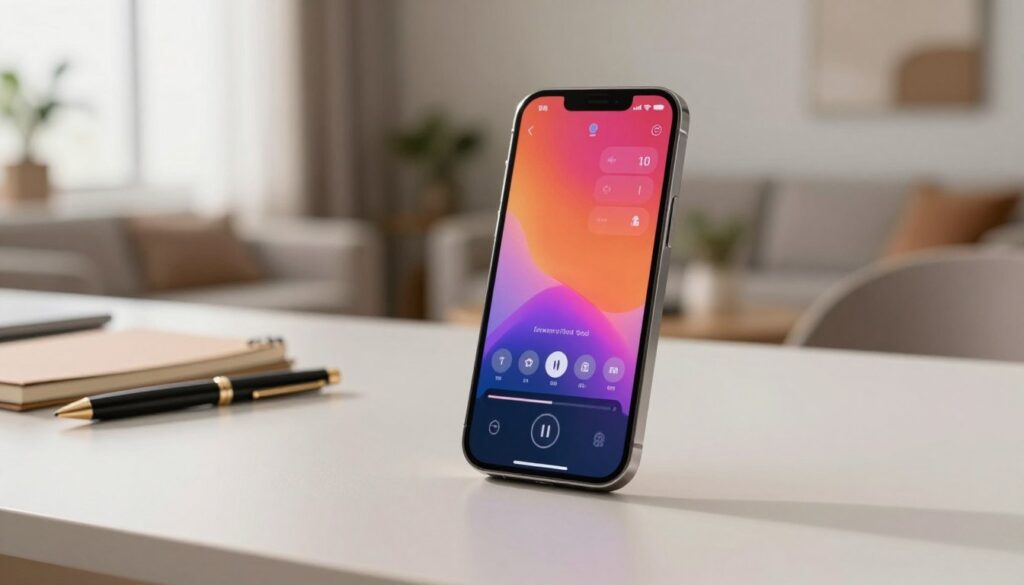
The new Apple device comes with easy-to-use tools for recording. You can control your digital media without extra software.
Our detailed guide on iPhone 18 screen recording is here to help. You’ll find saving your activity is simple and quick. Follow this guide to improve your iPhone 18 screen recording skills today.
Mastering the Native Screen Record on iPhone 18 Feature
Your iPhone 18 has a built-in tool for recording your screen. This tool lets you record without extra software. It keeps your device running smoothly while you make high-quality videos.
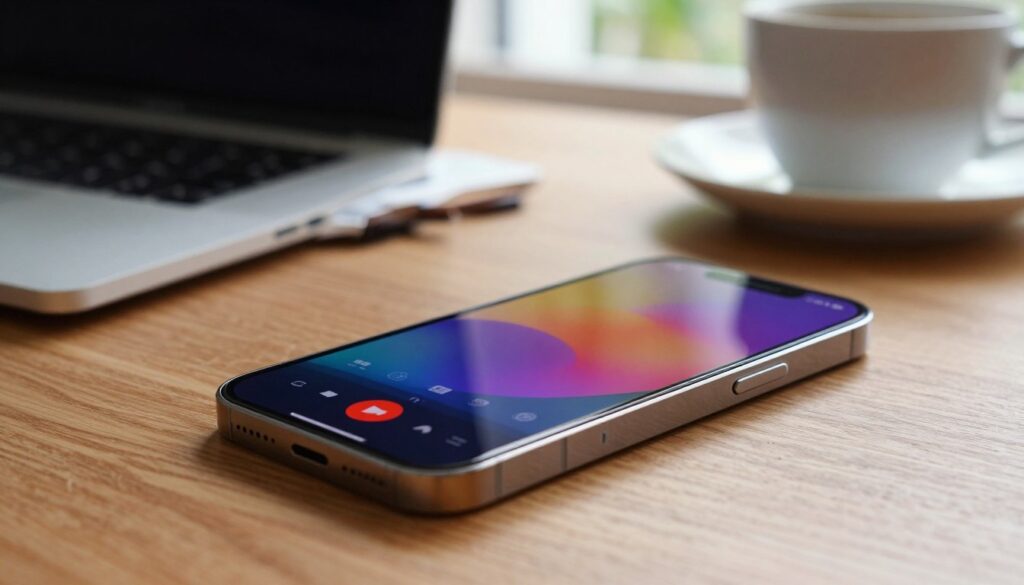
Adding the Screen Recording Tool to Control Center
To start, make sure the recording icon is in your Control Center. Go to the Settings app and choose Control Center. Scroll down to Screen Recording and tap the green plus to add it.
This makes it easy to record your screen whenever you want. After adding it, the icon shows up when you swipe down from the top-right. This quick access is great for catching moments or important info.
Initiating and Stopping Your Recording Session
To start, swipe down to open the Control Center and tap the circular record button. You get a three-second countdown before it starts. The status bar turns red to show you’re recording.
To stop, tap the red status bar or go back to the Control Center and tap the record button again. Your video will save to the Photos app. This is a simple way to record your screen without stopping what you’re doing.
Managing Audio and Microphone Settings
One key tip is to manage your audio settings. Long-press the recording icon in the Control Center to access a menu. Here, you can turn the Microphone button on or off.
Make sure the microphone is on if you want to include your voice or background sounds. Once set, these preferences stay the same for future recordings. Learning these small tweaks helps you make professional videos easily.
Exploring Advanced Screen Recording Apps for iPhone 18
Standard recording features on your phone might not be enough for your creative needs. While native tools are great for quick clips, they fall short for professional projects. These projects need more advanced tools for high-quality results.
Why You Might Need a Third-Party Screen Recorder
System software might not offer the specific adjustments you need. A specialized screen recording app for iPhone 18 can handle complex tasks. This includes multi-layered video production and precise audio mixing.
These apps are for power users who need top-notch footage for tutorials, gaming streams, or business presentations. They let you customize your output to meet professional standards.
Key Features to Look for in Recording Software
When looking for the best screen recorder for iPhone 18, focus on software with detailed control. Look for adjustable frame rates to keep your video smooth during fast action.
Advanced video editing is crucial. Being able to trim, annotate, or add transitions directly in the app saves time. Also, seamless cloud storage integration is key for managing large files without using up your device storage.
Top Recommended Screen Recording Apps for iPhone 18
Choosing the right software can be tough with so many options on the App Store. We’ve found the top screen recording apps for iPhone 18 that offer reliable performance and professional features.
Apps like Record it! and DU Recorder are often recommended as the best for iPhone 18. They have easy-to-use interfaces and powerful editing suites. These tools help you create polished content that stands out, ensuring you have the right software for any recording task.
Choosing a high-quality screen recording app for iPhone 18 is a smart move for serious creators. By exploring these top apps, you can easily take your digital content to a professional level.
Conclusion
Capturing your display on the iPhone 18 is key for today’s digital world. You now know how to use the built-in Control Center tools and third-party apps. This lets you make everything from quick tutorials to professional videos easily.
Choosing the right way to record depends on your goals. Try out different settings to find what works best for you. Changing your microphone or frame rate can make your videos better.
Keep practicing to get better at recording videos. You’re ready to make clear, high-quality videos with your smartphone. Start recording today and see how it improves your projects on the iPhone 18.