If you are a new iPhone 15 Pro Max user, you may be wondering how to take a screenshot on your device. Fortunately, taking a screenshot on an iPhone 15 Pro Max is a simple process that can be done in just a few steps.
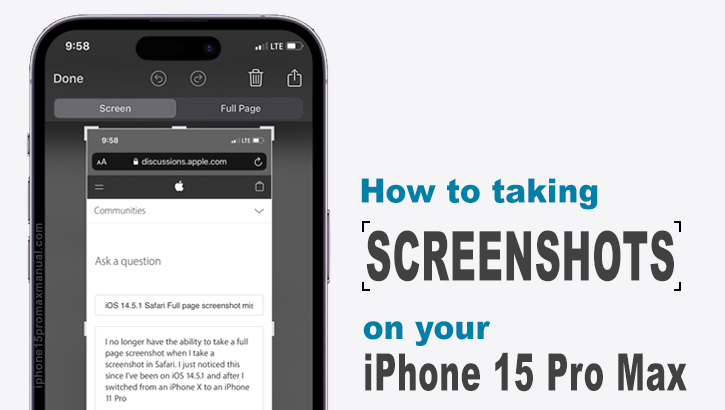
In this article, we will guide you through the process of taking a screenshot on your iPhone 15 Pro Max, as well as how to take a screenshot without using the button.
How to take screenshot on iPhone 15 Pro Max
Taking a screenshot on an iPhone 15 Pro Max is a simple process that can be done in a few easy steps.
Screenshots are useful for capturing important information, sharing funny moments, or saving important messages. Here’s how to take a screenshot on your iPhone 15 Pro Max:
- Locate the buttons: The buttons you need to press to take a screenshot depend on the model of your iPhone. If you have an iPhone 15 Pro Max, you need to press the Side button and the Volume Up button at the same time.
- Press the buttons: Press the Side button and the Volume Up button at the same time. You should hear a camera shutter sound, and the screen will flash white.

- View the screenshot: After you take a screenshot, a thumbnail of the screenshot will appear in the lower-left corner of the screen. You can tap the thumbnail to open it, or swipe left to dismiss it.
- Edit or share the screenshot: Once you have opened the screenshot, you can edit it using the built-in Markup tool or share it with others via AirDrop, Messages, or other apps.
How to take a screenshot on the iPhone 15 Pro Max using Siri
To take a screenshots on an iPhone 15 Pro Max using Siri, you can follow these steps:
- Navigate to the screen you want to capture.
- Activate Siri by saying “Hey Siri” or pressing and holding the side button.
- Say, “Take a screenshot.”
- Siri will take the screenshot for you.

This method is quick and easy, and it can be especially useful if you have difficulty pressing the physical buttons on your iPhone.
It’s important to note that Siri may not always understand your command correctly, so you may need to repeat the process a few times to get the screenshot you want.
Additionally, if you have VoiceOver or another accessibility feature enabled, you may need to adjust your settings to use Siri for screenshots.
How can I take a screenshot on my iPhone 15 Pro Max using Back Tap?
You can customize back tap actions to perform a variety of tasks, such as taking a screenshot. With this feature, you can create a more personalized and efficient experience on your iPhone.
To take a screenshot on your iPhone 15 Pro Max using the back button, follow these steps:
- Launch the Settings app on your iPhone.

- Scroll down and click on Accessibility.
- Click on the Touch section.
- Scroll to the bottom and click on Back Tap.

- Click on Double Tap.
- Select Screenshot.
Once you have completed these steps, you can take a screenshot by double-tapping the back of your iPhone.
How to take scrolling screenshots
There are ways to take a scrolling screenshot on an iPhone 15 Pro Max using the native iOS option or third-party apps.
To take a scrolling screenshot using the native iOS option, you can follow these steps:
- Take a regular screenshot by pressing the Side button and Volume Up button at the same time.

- Tap the preview thumbnail in the bottom left corner before it disappears.
- Tap “Full Page” to take a scrolling screenshot.
- Tap “Done” to save the screenshot.
This will capture the entire webpage as a PDF and save it to your Photos app. Alternatively, you can use third-party apps to take scrolling screenshots with more manual control and saving options.
What is the easiest way to take a screenshot on the iPhone?
The easiest way to take a screenshots on your iPhone 15 Pro Max is to use the buttons. Pressing the Volume Up button and the Side button simultaneously is a quick and easy way to take a screenshot.
If you find it difficult to press both buttons at the same time, you can use the Back Tap feature to take a screenshot without using the buttons.
Why won’t my iPhone take a screenshot?
If your iPhone is refusing to take screenshots, don’t worry; there are some common reasons and easy fixes for this issue:
- Low Storage: When your device’s storage is almost full, it can affect its ability to capture screenshots. Try freeing up some space by deleting unnecessary files.
- Button Malfunction: If the physical buttons are not working correctly, you may need to get them checked or repaired by Apple.
- Software Glitch: Sometimes, a software glitch can cause screenshot problems. Restart your iPhone or update your iOS to the latest version to resolve this issue.
- Privacy Settings: Ensure that you haven’t restricted screenshot functionality in certain apps due to privacy settings.
In most cases, one of these solutions should help you get back to taking screenshots without any trouble.
Conclusion
Taking a screenshot on an iPhone 15 Pro Max is a simple process that can be done in a few easy steps. Whether you use the buttons or the Back Tap feature, taking a screenshot is a useful tool for capturing important information, sharing funny moments, or saving important messages.
If you are having trouble taking a screenshot, try checking the buttons, freeing up storage, or restarting your iPhone.
1 thought on “How to Taking a Screenshots on iPhone 15 Pro Max: A Step-by-Step Guide”